
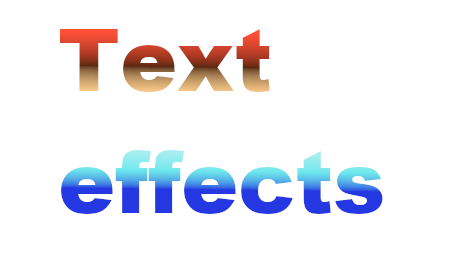
2.8 Text tools have a lot of options. In this exercise, we’ll place a gradient inside some text and then curve the text.
in Photoshop…
Very simple:
- Write text in a new layer (Use a large bold font like Arial Black)
- Turn off the lock on the Background layer
- Open the layers and the gradient pallets
- Pull any gradient into the text layer in the layers pallet
- Double click on the text layer for additional effects
- Curved path Click on the text tool and find the text path dialogue box in the options menu at the top of the screen,
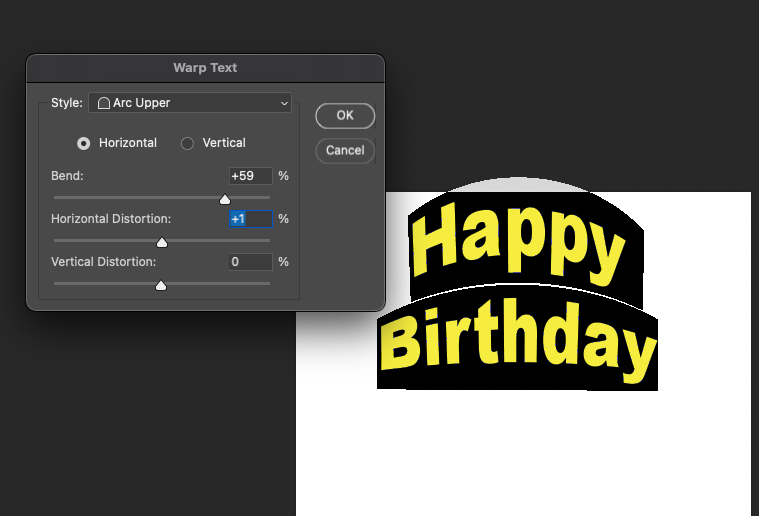
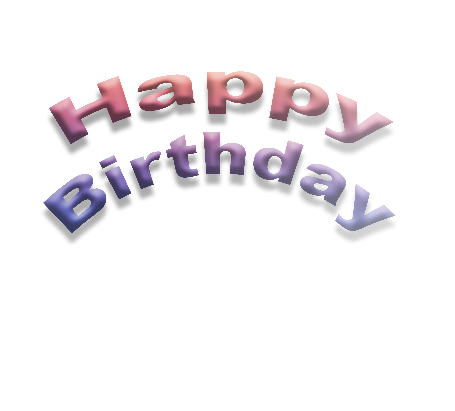
Text layer effects and arc / warp
Photopea.com
- Photopea operates like Photoshop, but not for text gradients. It is also free to use and operates on a remote server — Photopea.com
- Write a layer with text
- Right click on the Effects (Ef) button at the bottom of the layer pallet
- Select gradient overlay in the dialogue box
- You may need to edit the gradient tool by clicking the color buttons at the bottom of the color spectrum.
- You can also add drop shadows and bevels and other effects very easily using the same dialogue box.
- To ARC the text, click on “Warp” in the options menu at the top right of the screen.
- In the Warp dialogue box, pull down to select style of warp
Using Gimp
- Write your text
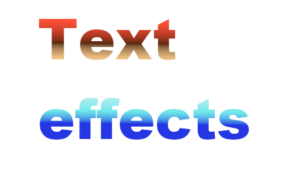
- Create a new transparent layer and put it under the text layer .
- Click on text layer
- Main menu : Layer / Transparency / Alpha to Selection
- Turn off text layer (Click on the eyeball)
- Switch to transparent layer underneath
- Click and drag gradient tool and hit return to release
- Export to png
To warp / arc the text
- Write your text on a regular layer, then place a transparent layer over it.
- Use the path tool to create a curved path
- In the text layer, right click and follow the small menu to “text along path”
- With your text on a path still highlighted, click fill text on the left hand Path options window
- Turn off visibility for the original text laye
Tutorials on text effects
- 3-D Text in Gimp by Little Web Hut
- Top Five text effects in Gimp and Text tool in Depth, both by Davies Media Design
- Text effects by Empty Easel
- Curved text in Gimp – Davies media design
- Gradient tool Photopea