
The goal of these projects is to learn how to create parts of a podcast or a full 3 minute or more podcast by going through the exercises.
Exercises 20 points
Use any audio file for 5.1 – 5.2; Use an older (1920s era) file with clicks and pops for 5.3
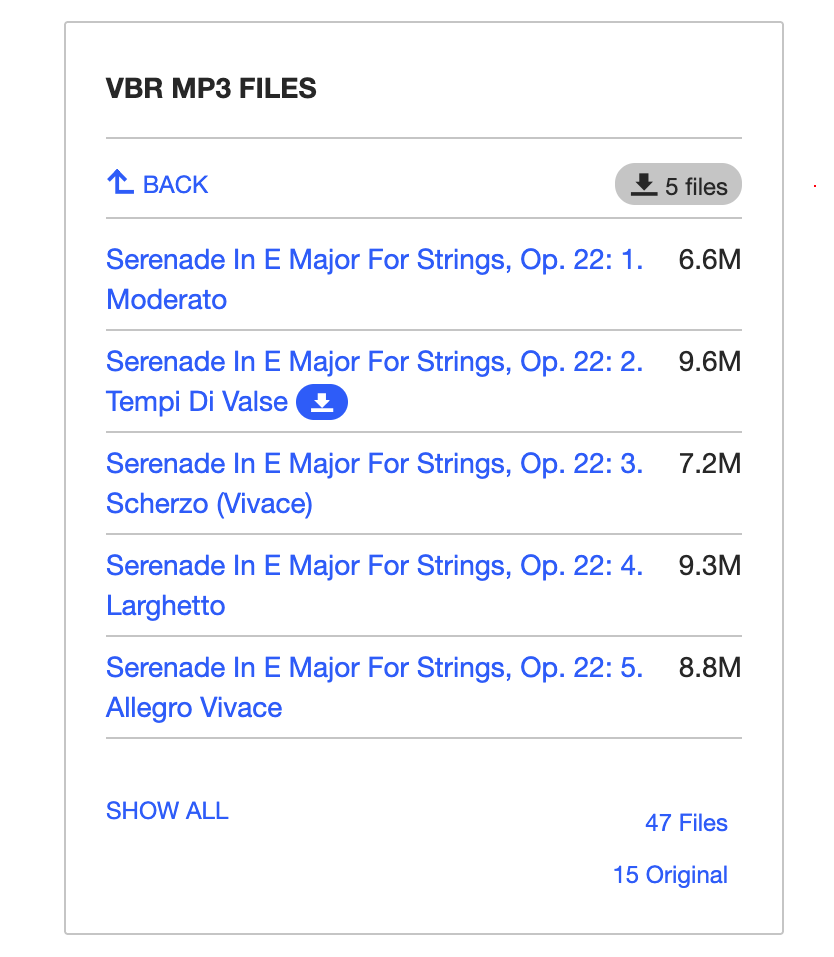
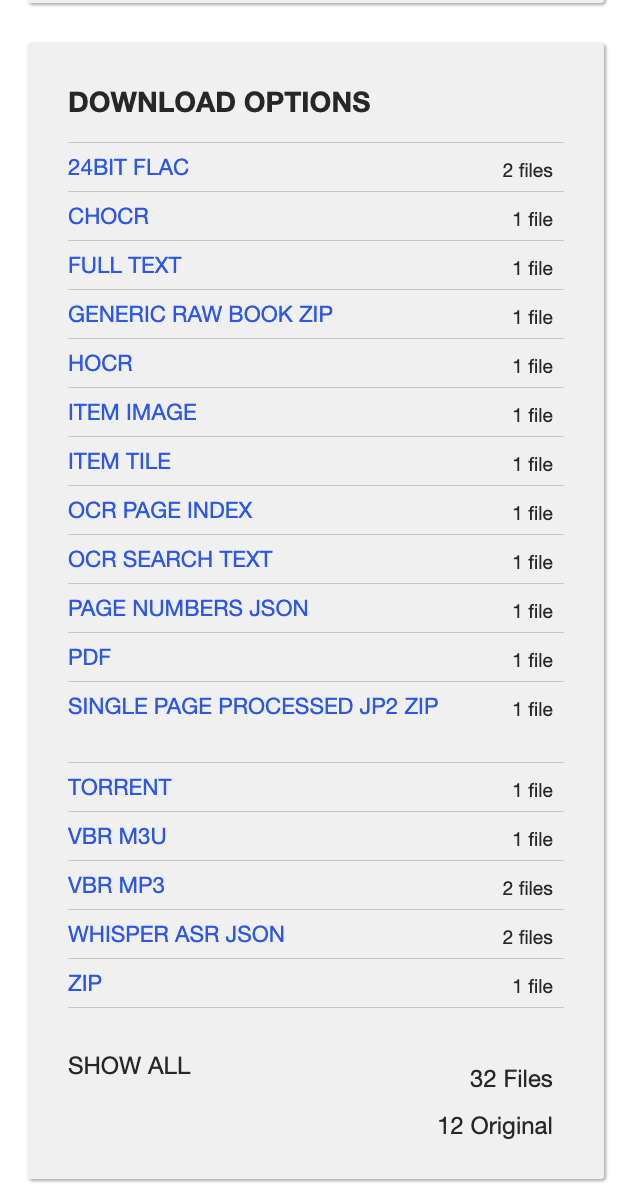 5.1a – File download – Go to the Internet Archive and download a music file. One example: A famous Serenade for Strings in E Major by Antonin Dvorak. (#2, Tempi di Valse is the most recognized).
There are lots of download formats, but most listed on this page are text / meta information files. For now, just click on VBR MP3 – Variable bit rate MP3, then hover your cursor over the one you want to download, and you should see the download arrow. Save to your desktop.
Next, create a new project in Audacity (or Adobe Audition) project. These instructions are written for Audacity but they can be applied to other audio workstations).
When you open the first window, it looks blank project. This is misleading. So you have two choices:
-
- Tracks / Add New / Multitrack Session
Record using your microphone — - File / Import / Audio Import a file —
- Name and save your file. Example: lastname.firstname.RadioSpot.aup3
- Check that the saved file path is easy to locate
- Select “None” for template.
- Set sample rate to “44100” (44.1khz) and Bit Depth to 24.
- A higher bit depth (dynamic range) will affect the quality more than the sample rate. Record at 44.1 khz to keep file size manageable, and to integrate smoothly with many files downloaded from Freesound and other websites.
- Set Master to Stereo
- Tracks / Add New / Multitrack Session
5.1b – Basic editing — Use the I beam select tool to highlight a 30 second portion of the file to save and discard the rest. Then duck (reduce the volume) at the beginning and end of the file to allow a voice-over intro.
Then add a voice track.
5.1c – Filtering — Remove clicks and pops in an old audio file (Such as this Dvorak Serenade in E Major)
See this Audacity Noise Reduction tutorial, and especially the section on removing clicks and pops. You can also try using the high shelf filter (new in Audacity 3..3).
5.1d – Effects – Download and open something short (for example, this clip from Dvorak’s New World Symphony.) Try the various sound effects, and then undo each in turn. One fascinating effect is the Effect / Pitch and Tempo / Paulstretch. It is named for Octavian Paul.
5.1e – File management – Open your mp3 and save the file as an audacity project (aup3). Export to m4a (ACC), mp3 or wav formats. (Intro to Audacity Editing).
Web placement –– Upload to soundcloud.com (you can sign up for a free but limited account) or YouTube. Once the audio file is uploaded, open your WordPress.com page and look for the “Add Media” function. You have to click on the little black box with the white cross. You may see Soundcloud or YouTube in the “Add Media” box, but not Audio.com (yet). If you dont see them in the small window, click through to a larger window or search for them. Now copy and paste the URL from your Soundcloud or YouTube page into the Add Media dialogue box.
5.2 Podcast Intro (50 points): Create a 15 second podcast intro using your voice along with public domain sound effects and music. You’ll export the .mp3 or .m4a files, then upload to YouTube, Soundcloud or some other streaming server, then embed / display on your portfolio site. For example:
5.3 Podcast full program (100 points): Create a 3 minute (or more) podcast on topics around the campus or the city using the intro from 5.2. Interview other people as part of the podcast.
Use Audacity (the free audio application) or Adobe Audition, or any other audio application you like. Audacity is easy to download and completely free to use. (The official Audacity tutorial is found here, but there are lots of video and web tutorials available through a search).
First, come up with a concept and write your announcement. This can be for a made-up company or non-profit. It can be funny or serious. Usually we speak at a rate of about 100 to 130 words per minute, so a 30 second commercial might have only 50 to 60 words at the most, while a news program introduction may have 15 to 30.
Once you have written and rehearsed your PSA, you are ready to record, add sound effects, edit and export the file.
Import public domain music
Millions of free public domain music recordings and sound effects are available at archive.org. Some may be downloaded and some are just for streaming.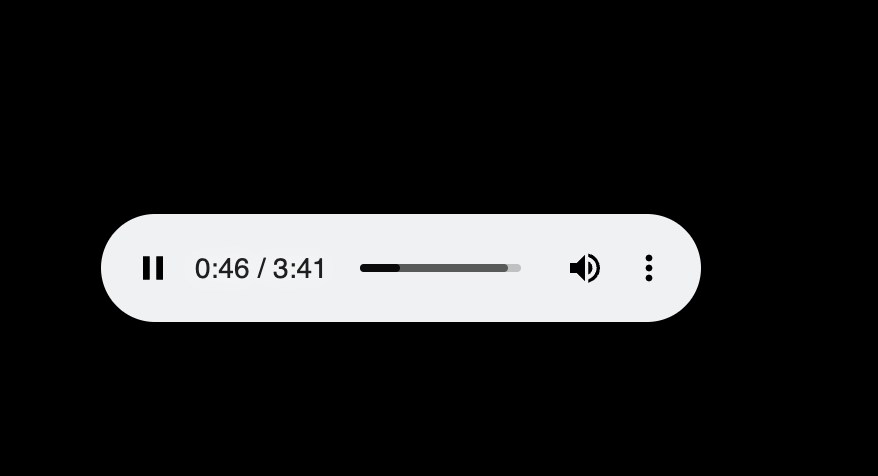
You may need the Chrome browser to download a file. (Other browsers don’t work as well). Look for the mp3 or m4a files on the right side and click the download button. (Note, sometimes archive.org takes you to a player site, and you have to click on the three dots — the hamburger — to get the download option).
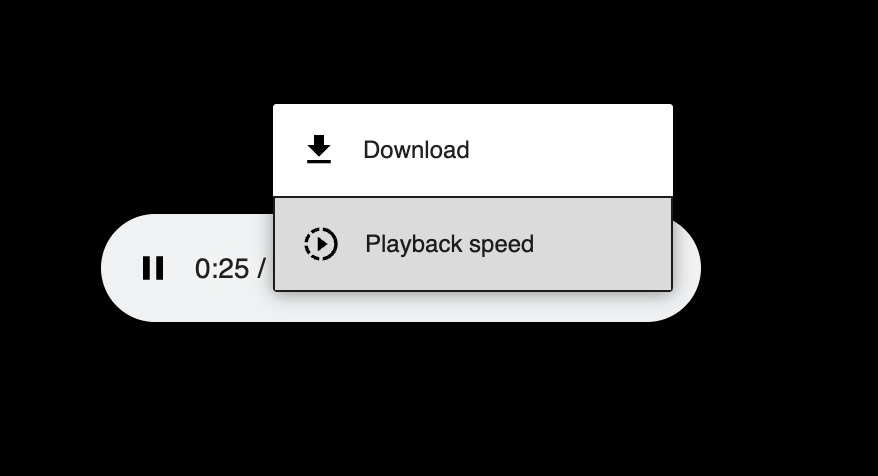 Sometimes when you want to download an mp3, you need to click on the “hamburger” menu and download. (This works best in the Chrome browser).
Once the file is downloaded to your desktop it can be opened or imported into Audacity or Audition and used for your project.
More information and inspiration
- Starting your own podcast – National Public Radio